Automated trading system

Cryptocurrency Algorithmic trading bot

hamster-bot - trading bot with many strategies. It allows you to build your own automated trading system.

hamster-bot

new actual videos:

Supported Cryptocurrency Exchange Markets

logo name my referral links official partnership status
BitMEX bitmex.com/register/J3NsL2 listing blog 100%
Bybit partner.bybit.com/b/hamster_bot listing 100%
Binance accounts.binance.com/en/register?ref=293309339 API broker USDⓈ-M futures | SPOT
FTX ftx.com/#a=hamsterbot listing 100%
HTX | Huobi Spot htx.com.am/invite/en-us/1h?invite_code=sk74c223 twitter SPOT
Kucoin Spot kucoin.com/ucenter/signup?rcode=rPY332Q SPOT
Gate.io Spot gate.io/ref/XlBBV1gL?ref_type=102 TG, X, VK, T SPOT
Bitget partner.bitget.com/bg/V3FCF8 listing blog SPOT FUTURES
OKX okx.com/join/12031019 API Broker Perpetual SWAP
Phemex phemex.com/ru/register?referralCode=G8XVE5 blog telegram SPOT
BitMart bitmart.com/register-referral/en?r=ABqQTU API Broker in progress
MEXC mexc.com/register?inviteCode=mexc-1tVqA API Broker new USDⓈ-M futures | SPOT
BingX bingx.com/invite/KWZYRU/ USDT-M Perp Futures
Tiger (broker bybit, binance) account.tiger.com/signup?referral=hamster-bot 100%

For purchase questions, please contact telegram @dreamcast2

Актуальный срез количества активных ботов
Info 4013
Bot Count: -

Number of orders executed by hamster-bot For:

this month May last month Apr since 2022-02-18
All 51906 133360 10308247
0 0 0
1861 7824 312120
17 36 409010
28295 82241 3187562
118 248 333302
215 294 111534
0 0 752455
0 0 1
0 0 10178
0 0 80280
20298 37111 5010067
3 55 12501

Trading volume in $ USDT by hamster-bot For:

this month May last month Apr since 2023-04-15
2183410.05 8364589.62 616465454.89
4005652.57 9244372.53 501668682.83
275520.04 594320.71 390479006.0
234.69 3176.83 3163658.78

Monthly trend: orders and total volume

Orders: - Volume $: -

Trade any idea and any strategy

hamster-bot

You can add any of your strategies to hamster-bot — just submit your request through the form or contact me directly

    It works like this:
  • You have an interesting strategy that you want to trade in an automated way
  • Submit a request through the form. Ideally, you already have the strategy code in Pine Script
  • Wait for a notification that the strategy has been added
  • Trade fully automated with the bot following your strategy
Full strategy implementation. This is not alert-based trading. Real-time order and position management.

If you don't have a strategy but have an idea — great! Submit a request to evaluate the idea and build a trading strategy, with subsequent validation on historical data.

Automated trading system hamster-bot

Self-hosted solution — the bot runs on your server or computer. Your API keys and data never leave your machine.
Cross-platform — native builds for Windows, Linux and macOS. A single executable with no dependencies.


Download

Links to download the current version 2026/05/11 (the bot version numbering is just the date 2.025/07/29):

Download NEW Win Download previous version Win (+ recommended to install Dimension 4 or nettime for time sync on Windows)

Download NEW Linux Download previous version Linux

Download NEW macOS Download previous version macOS


  • For all strategies, backtests are available to validate and tune settings on historical data. Built-in tick-level strategy tester with parameter optimizer (brute-force), heatmap and 3D Surface construction for visual analysis. Go to tester →
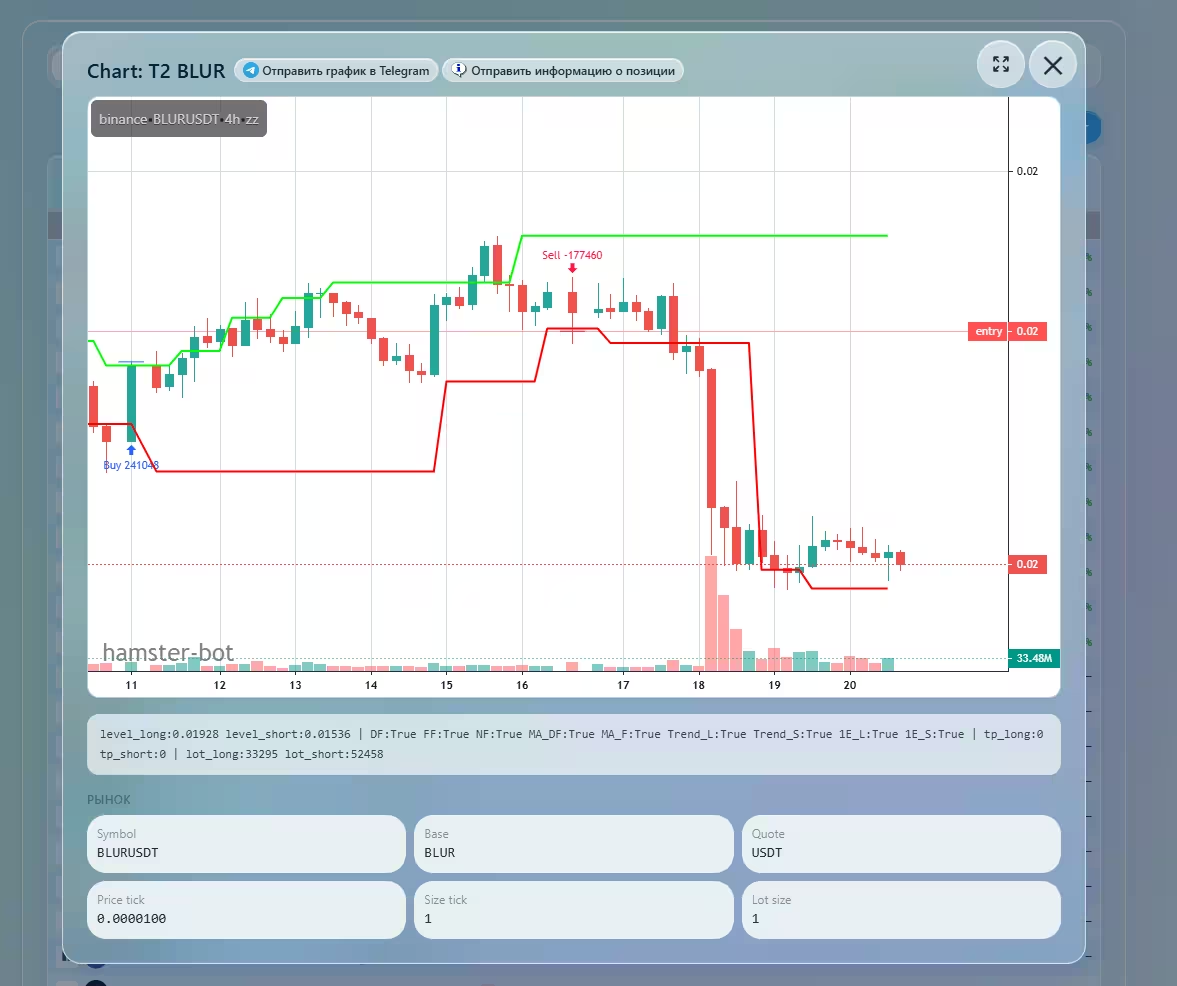
  • Telegram notifications: open/close trades as chart images. Alerts for critical events. Flexible setup — a separate chat per strategy.
  • TradingView alert trading via Webhook URL — automatic open/close positions on TradingView signals.
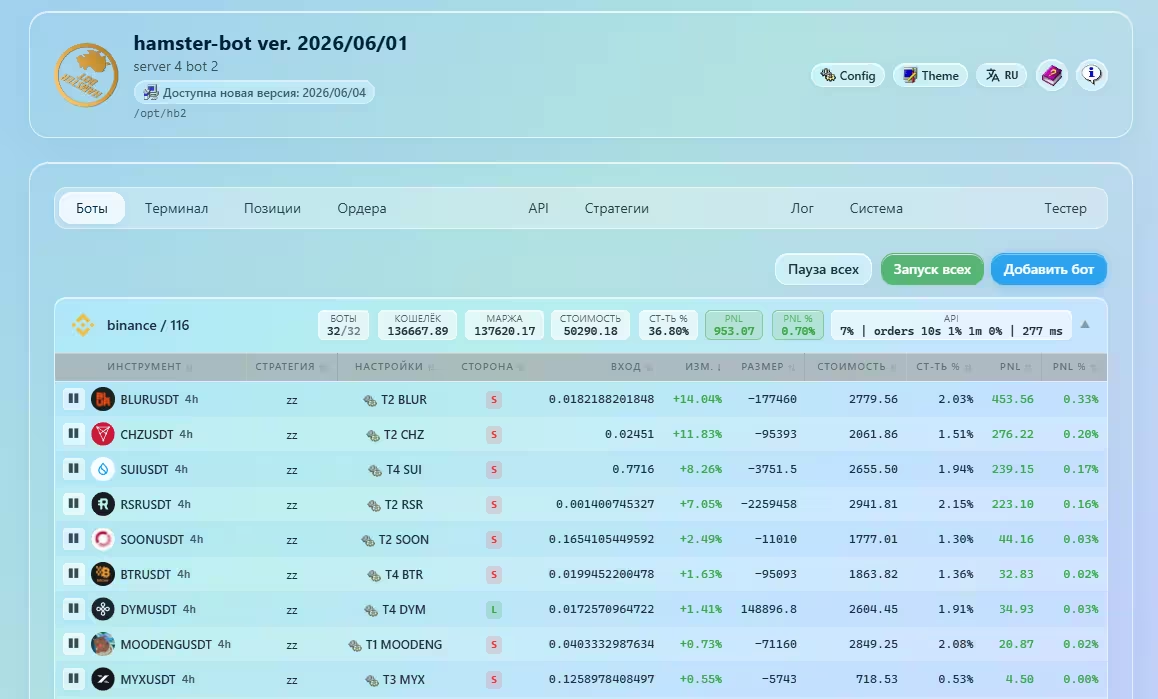
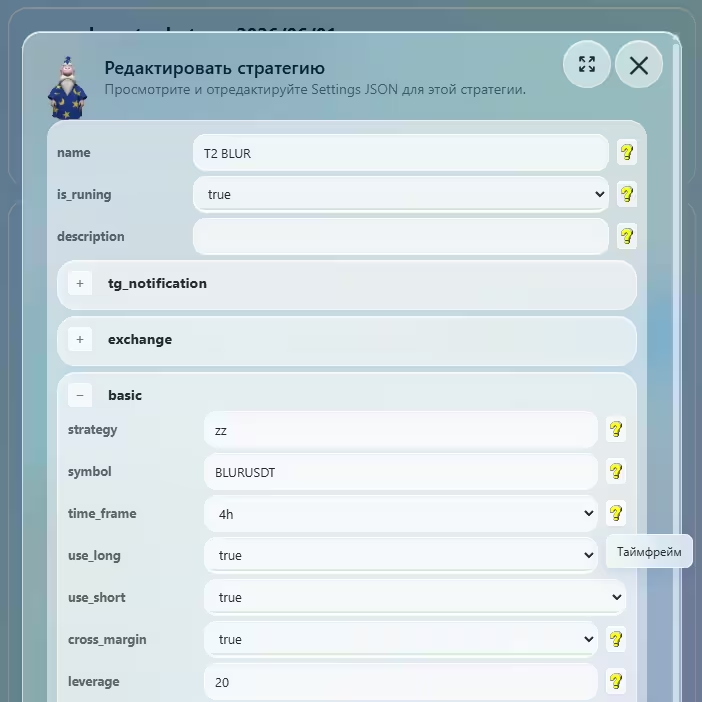
  • WEB interface for monitoring and management from any browser by your server IP. Real-time interactive updates without page reload: positions, balance, strategy settings.
  • Self-hosted & cross-platform. The bot runs on your server or PC — API keys and data stay with you only. Native self-contained builds for  Windows,  Linux and  macOS with no dependencies.
  • 12 supported exchanges: BinanceBinance ByBitByBit OKXOKX BitMEXBitMEX BingXBingX BitgetBitget Gate.ioGate.io HuobiHuobi KuCoinKuCoin MEXCMEXC PhemexPhemex WEEX
  • Console interface with dashboard mode — a compact real-time status table of all active bots.
  • Optimized for running many accounts and settings variants in a single bot. Stability tested with over 2000 bots in one process. System resource usage is minimal. A bot running five strategies on three accounts uses only 70 MB of memory.
  • Capital management & risk management. Flexible lot size: fixed (in coins or USDT), percentage of balance. Wide set of closing options: Take Profit, Stop Loss, Trailing Stop, close by TA indicator signals. Take Profit by margin balance (equity). Automatic profit transfer from trading account to funding account.
  • Many trading strategies available.
    • Trend
    • Counter-trend
    • Breakout
    • Mean reversion
    This allows you to build a unique strategy portfolio. Auto-rebalancing is available — strategies share profit/loss between each other.
    You can trade any strategy in hamster-bot — just submit a request via forms.gle/RLVqNCjg4dtosqmF6
    Strategy descriptions →
  • Don't want to configure everything yourself? There is a ready-made solution — press one button and everything is set up. The hamster-bot team provides proven strategy presets: connect a preset and the bot starts trading right away without having to tune parameters yourself. Ready-made solution for investors →
  • Update without stopping trading — install a new bot version via a button in the interface. Open positions and orders are not closed.
  • Free bot.
WatchDog — offline bot notification

WatchDog — an independent external service that monitors whether your bot is alive and running. If the bot stops responding — you receive a Telegram notification: WARNING! Bot is offline.

Configured in settings_program.json:

  • Enable/disable — parameter "watchdog": true/false
  • Trigger interval in minutes — parameter "watchdog_timer_minutes"
    Recommended value: 60 minutes

Trigger causes:

  • The computer/server running the bot has stopped working or lost internet connection;
  • OS software crash or system freeze;
  • Expired API key or exchange ban;
  • Exchange outage;
  • Changing bot settings or updating the version — changes the unique identifier key, which will trigger a one-time offline notification.

Instructions:

Video guides
VPS rental

VPS (VDS) is a virtual dedicated server.
For us, a VPS is a full computer in a provider’s datacenter. The provider ensures stable server operation and reliable internet connectivity. This is important for trading!

We will use a VPS to run the bot program. This is the most reliable way to run software that trades on exchanges.

Which configuration to choose: when renting your first VPS, you can pick the cheapest option. Its performance will be sufficient. The software is optimized and not resource‑hungry.

Example providers: zomro.com, contabo.com, melbicom.ru
If possible, use my referral link : zomro.com/vps?from=413202 Promo code: zomro_413202

The bot can run on Linux, macOS, and Windows.
Recommended OS versions  Ubuntu: 20.04, 22.04, 24.04

❗️Choose a server location outside the US (most exchanges block requests from the US). Europe and Asia regions are OK.

You get remote access to the rented computer (IP address, login — usually root — and password).
To connect to your Linux VPS, use SSH with termius (or putty)
Termius can also be installed on a smartphone. The free version is enough. (ignore all purchase prompts)

Guide to install, run, and update on Linux (CLI)

First, connect to your VPS via SSH using termius (or putty)
After you pay for the server, you receive the IP address, login (usually root), and SSH password.

Installing the bot on a Linux server is very simple thanks to ready scripts.
Just copy → paste → run the commands in the terminal.

INSTALLATION

The main requirement is a unique, free port

  • 1. Create a new folder for the bot (in the example, folder hb1). This way you can install many bots in separate folders hb1, hb2...:
    mkdir -p /opt/hb1
  • 2. Enter the created folder:
    cd /opt/hb1
  • 3. Download and run the install_local.sh script:
    wget -qO- https://raw.githubusercontent.com/ksandric/hamster-bot/refs/heads/master/install_local.sh | bash
    This command downloads the install_local.sh script and runs it. (the script downloads → unpacks the zip → creates a .service in systemd)
  • 4. During the process, the script will ask for a port and will check if it is free

Done! The bot is installed in the hb4 folder and a service named hb4.serviece will be started.
The terminal will show the bot log in real time. You can proceed to add API keys and configure strategies.

UPDATE

When you have 2 or more bots running on your VPS:
/opt/hb1
/opt/hb2
/opt/hb3

To update the bot in /opt/hb2, run the following commands in order:

  • 1. Go to the target folder (example: hb2):
    cd /opt/hb2
  • 2. Download and run the update_local.sh script:
    wget -qO- https://raw.githubusercontent.com/ksandric/hamster-bot/refs/heads/master/update_local.sh | bash

Done! Only the bot in /hb2 will be updated and restarted. The script automatically finds the service associated with the selected folder.

Additional information | Search for bots and service files on server

If you installed many different bots on your Linux VPS and can’t tell which .service belongs to which bot folder, use this command:
grep -rl "hb_c" /usr/lib/systemd/system/

This command lists all services that reference the executable hb_c (the bot binary). This helps you find the correct service and the folder it belongs to.

hamster-bot.com

In the screenshot, there are 5 services but only (2) bot folders — meaning there are extra services.

If you use a folder name as the search string, you’ll get a list of services pointing to that folder:
grep -rl "/hb/" /usr/lib/systemd/system/

If you want to remove a bot service, run:
1. systemctl stop hb2.service - stop the hb2 service
2. systemctl disable hb2.service - disable the hb2 service
3. rm -rf /usr/lib/systemd/system/hb2.service - remove the hb2.service file

Additional information | Restart all active bots on server

wget -qO- https://raw.githubusercontent.com/ksandric/hamster-bot/refs/heads/master/restart_all.sh | bash

1. This script finds all services associated with the bot and separately lists which ones are currently enabled.
2. Restarts only the enabled ones with a 15-second pause between services.

hb
Additional information | Update all active bots on server

wget -qO- https://raw.githubusercontent.com/ksandric/hamster-bot/refs/heads/master/update_all.sh | bash

1. This script finds all services associated with the bot and separately lists which ones are currently enabled.
2. Updates only the active bots.

Previous installation guide. Detailed and up to date, but more complex

Video guide link: youtu.be/jxb6aZQwtN4

First, connect to your VPS via SSH using termius (or putty)

  • Create a folder for the bot (example folder name "hb")
    mkdir -p /opt/hb
  • Go to the folder
    cd /opt/hb
  • Download the zip archive
    wget https://github.com/ksandric/hamster-bot/blob/master/hb_linux-x64.zip?raw=true
  • If unzip is not installed, install it
    sudo apt install unzip
  • Unpack the archive
    unzip hb_linux-x64.zip?raw=true
  • Delete the zip archive
    rm -rf hb_linux-x64.zip?raw=true
  • Make the file executable (the binary is hb_c)
    chmod +x ./hb_c

After that you can run it with ./hb_c, but that is not suitable for the bot. You should create a service so the bot runs in the background and doesn’t stop when the terminal session ends.

  • Go to the directory
    cd /usr/lib/systemd/system/
  • Create the hamster-bot_1.service file. You can create it with:
    nano hamster-bot_1.service
    (the name can be any, the format is always .service. You can create many services, but make sure the bots use different ports in their configs)

File contents: hamster-bot_1.service
[Unit]
Description=hamster-bot_1
After=multi-user.target
[Service]
Environment="DOTNET_BUNDLE_EXTRACT_BASE_DIR=%h/.net"
Type=simple
ExecStart=/opt/hb/hb_c
WorkingDirectory=/opt/hb
RestartSec=61
Restart=always
[Install]
WantedBy=multi-user.target

  • Save changes and close the file with Ctrl+x, then press Y, then Enter
  • Run the commands:
    • systemctl daemon-reload
    • systemctl enable hamster-bot_1.service
    • apt-get update
    • apt-get install -y libfreetype6
    • apt-get install -y libfontconfig1
    • apt-get install -y fontconfig
    • sudo timedatectl set-timezone UTC
    • Optionally install fail2ban:
      apt-get install fail2ban
  • To open the port where the bot runs so the web interface is accessible by your server IP (example port 80):
    • iptables -I INPUT -p tcp --dport 80 -j ACCEPT
    • ufw allow 80
  • To start the service, run:
    systemctl start hamster-bot_1.service
  • Done! The service is now available and will start automatically with the server (+ auto‑restart if it stops). To manage the service:
    • View log in real time: journalctl --follow -u hamster-bot_1.service
    • Check status: systemctl status hamster-bot_1.service
    • Stop: systemctl stop hamster-bot_1.service
    • Disable: systemctl disable hamster-bot_1.service
    • Restart: systemctl restart hamster-bot_1.service
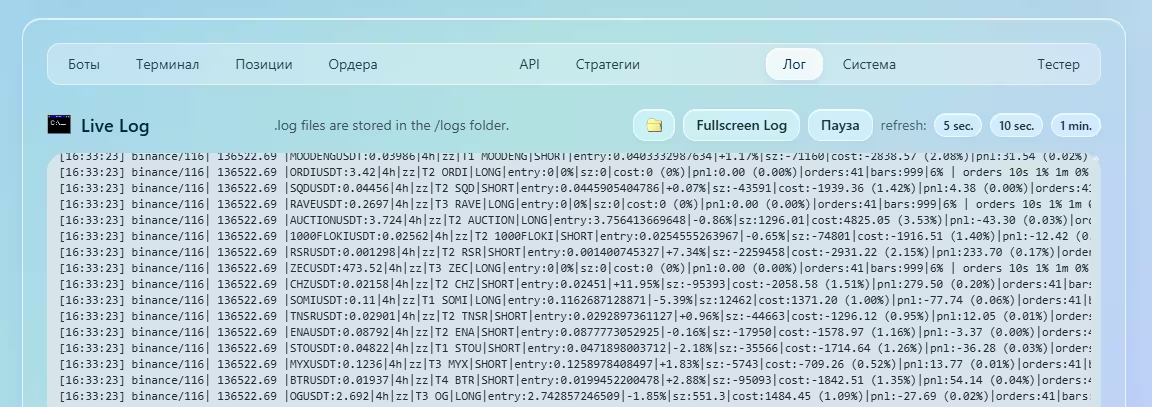
  • After starting, to read the bot log in real time:
    • Go to the folder cd /opt/hb/logs
    • Open the log tail -f log_date_here.log (general log + logs per strategy)

Previous update guide. Detailed and up to date, but more complex

Video guide link: youtu.be/FJgu7OfgUWU

First, connect to your VPS via SSH using termius (or putty)

Example service name: "hamster-bot_1.service".
Bot files folder: "/opt/hb"

  1. Stop the bot (stop the service)
    systemctl stop hamster-bot_1.service
  2. Go to the bot folder
    cd /opt/hb
  3. Download the zip archive
    wget https://github.com/ksandric/hamster-bot/blob/master/hb_linux-x64.zip?raw=true
  4. Unpack with file replacement (settings_program.json will be ignored)
    unzip -u hb_linux-x64.zip?raw=true -x settings_program.json
  5. Delete the zip archive
    rm -rf hb_linux-x64.zip?raw=true
  6. Make the file executable again
    chmod +x ./hb_c
  7. Start the bot
    systemctl restart hamster-bot_1.service
  8. Done! The bot will continue running with your settings. Everything is applied without closing positions or orders
Administration recommendation

If your Linux VPS has low memory:
hamster-bot.com

(1) View available and used memory:
df -h

(2) Utility with memory usage visualization. For easy search of large folders:
ncdu /

I often notice that on Ubuntu systems with limited memory, system logs can take up a lot of space. These two commands will free up space:
journalctl --vacuum-size=100M
rm /var/log/*.[0-9]

But it's better to adjust the config to prevent this from happening.

Bot logs can also take up a lot of space in some situations. They are stored in the /logs folder. Here are the log parameters in the config:
"log": {
"log_months": 2, — how many months to keep logs
"debug_mode": false,
"log_size_mb": 50, — log file size limit
"log_files_count": 5 — file rotation N times when size limit is reached },

The bot logs CPU, RAM, and disk usage. It sends an alert to Telegram when critical values are reached.

If you replace bot files manually via FTP, don’t forget to make the executable file runnable: chmod +x ./hb_c

  • After launching the bot using these instructions, it runs as a service (in the background and auto‑starts with the server + auto‑restart if it stops). To manage the service:
    • View log in real time: journalctl --follow -u hamster-bot_1.service
    • Check status: systemctl status hamster-bot_1.service
    • Stop: systemctl stop hamster-bot_1.service
    • Disable: systemctl disable hamster-bot_1.service
    • Restart: systemctl restart hamster-bot_1.service
  • After startup, to read a specific bot log in real time:
    • Go to the folder cd /opt/hb/logs
    • Open the log tail -f log_date_here.log (general log + per‑strategy logs)
Run on macOS

Not sure why, but this option exists

Telegram connection:
    Getting a token to log in to the WEB interface
  • After clicking "Get token", the token is sent by the Telegram bot @new_hamster_bot
  • To receive a private message from the bot, start a chat with /start
  • One‑time login token looks like this: re0hcc4rIE6cYUI
  • Token validity = 24 hours from creation
  • ⚠️ The message is sent to your Telegram ID. This ID must be set in settings_program.json under "telegram_id" (restart the app to apply changes) ⚠️
  • Get your "telegram_id" using the bot @fetch_id_bot
    Receiving bot notifications in Telegram
  • The chat ID to receive notifications must be set in settings_program.json under "id_chat"
  • Get the required "id_chat" using the bot @fetch_id_bot. To get the id_chat for a specific chat, add @fetch_id_bot to the chat and it will send the ID (for chats it’s a negative number). To get a channel id_chat, forward any post from the channel to @fetch_id_bot
  • (optional) You can set your own Telegram bot token in settings_program.json: "bot_token": "",. But the WEB interface login token is sent only by @new_hamster_bot
  • For more flexible notifications, you can set a separate chat per strategy setting. In "tg_notification" use the "id_chat" parameter

hamster-bot.com
Guide to open a port on Windows

After starting the executable, the bot’s WEB interface is available locally at http://127.0.0.1:80. If the bot runs on a server, the interface will be available by your server IP on the port set in the config file.


Contacts: developer @dreamcast2 | latest news on Telegram channel | chat

Donate bitcoin address 1JjzXNVKdbPscPFMXNptgtTM9KekTiz63a
Donate USDT TRC-20 address $ TQrGSbDM2wqvRqrmZKryEZAaedDzTYEhnc